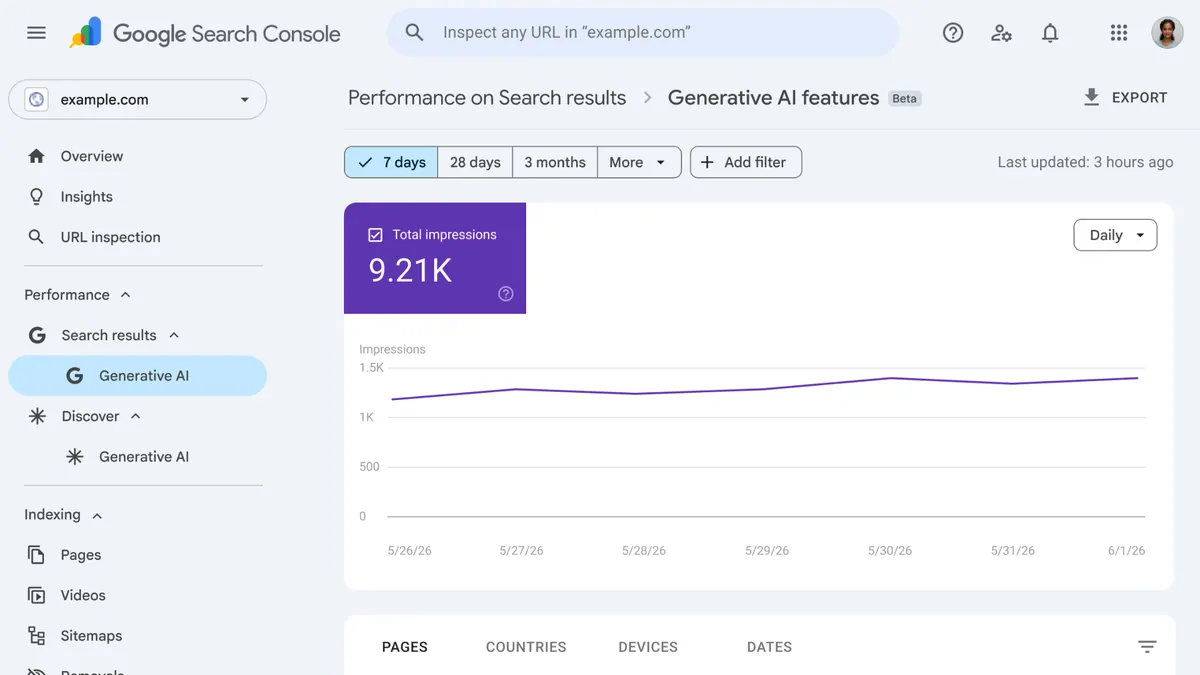
Search Console says people clicked through from Google. GA4 barely shows any visits. You now have two reports, two different totals, and a decision about whether your SEO budget is doing anything useful.
Don't change the content calendar on that evidence alone. First check whether the reports cover the same website and traffic source, then test whether Analytics receives the activity it should. A difference between clicks and sessions is expected. An unexplained change in the relationship deserves investigation.
This is a diagnostic for business owners and the person maintaining their website. It won't make the two totals equal, and it isn't a complete GA4 setup tutorial. Google's guide to using Search Console and Analytics together explains why the systems differ; the work below helps you decide what to check first.
Before comparing totals, compare the same slice
A Google Search Console property and a GA4 property are not interchangeable containers. Start with the exact reports and filters, not the dashboard headline. For a Canadian business, keep the Canada view alongside the worldwide view rather than comparing one against the other.
| Check | Search Console | GA4 |
|---|---|---|
| Website | Correct domain or URL-prefix property; check included subdomains. | Correct property and web stream; inspect the production hostname. |
| Traffic | Start with the Web search report. | Use Sessions with Session source / medium set to google / organic. |
| Dates | Choose a completed period with available data. | Use the same dates; record the property's reporting timezone. |
| Audience | Record country and device filters. | Apply corresponding country and device filters, allowing for measurement differences. |
| Page | Check which canonical URL receives the performance data. | Check the landing-page URL and hostname, including any parameters. |
Use the Traffic acquisition report for the session comparison. A first-user acquisition dimension describes how a person was originally acquired, which is a different question. “Organic Search” alone also includes search engines other than Google.
Record the timezones before judging a daily spike. Search Console's standard performance dates use Pacific Time; GA4 uses the property's configured timezone. A Halifax business using Atlantic Time can therefore see activity near midnight assigned to different dates. A longer comparison reduces the weight of that boundary but doesn't make the clocks identical.
80 clicks and 55 sessions do not mean 25 lost customers
Consider an illustrative Canadian consulting website, not a MAXUOD client result. Its completed reporting period contains 80 Google clicks and 55 Google-organic sessions after the scope checks above.
Subtracting one from the other produces 25. It does not identify 25 people who abandoned the website, refused consent, or became invisible to Analytics. Those explanations require separate evidence.
A session groups interactions rather than counting every search-result click. A visitor can return from another Google result while the same session remains active. Session attribution also has its own rules, so a session credited to Google organic is not necessarily a new click in that day's Search Console log. See Google's session definitions and attribution examples.
URLs add another source of confusion. Search Console generally associates performance with the Google-selected canonical URL, while Analytics records the URL where its tag runs. Check redirects and parameter variants before declaring that a landing page received no search traffic. Google's search-performance definitions describe the canonical grouping and its exceptions.
There is no useful universal percentage that makes a mismatch safe. We would investigate a sudden break from the site's own pattern, especially after a release, sooner than a stable difference with a documented explanation. With very small counts, inspect individual test paths before interpreting percentage swings.
Almost no GA4 activity needs a collection check
If the correctly scoped production report is nearly empty, “the tools count differently” is not a sufficient diagnosis. Check the tag destination and the consent path.
Confirm the hostname and measurement destination
Ask the developer to identify the GA4 measurement ID loaded by the live site and match it to the intended web stream. In a report or exploration, inspect Host name and, where relevant, the stream dimension. A property total can hide visits from another product, a preview deployment, or localhost.
Keep those rows visible during diagnosis, but separate them from customer reporting. Otherwise an afternoon of internal testing can look like a successful campaign. A production-style local build is still a local visit; the build mode alone does not tell you who created an event.
Distinguish a consent choice from a broken consent flow
With basic consent mode, Google tags remain blocked when the visitor does not consent. Advanced consent mode behaves differently and can send measurements without cookies under denied consent. Google's consent-mode overview explains both implementations.
Find out which one the website actually uses. Do not remove the consent gate to make a graph look healthier, assume every visitor is measurable, or promise that modelling will fill every gap. The test should confirm that the implementation follows the visitor's choice and the business's approved privacy setup.
That means checking both paths. Rejection should preserve essential website functions. Acceptance should allow the intended analytics activity. A button that saves “accepted” in the interface but never updates the tracking state is a different problem from a visitor choosing “decline.”
Test one consenting visit from arrival to the next page
Use your own device and an agreed test window. Connect Google Tag Assistant to the production page, enable debugging for that device, and record the starting URL and consent state. Don't enable debug mode for every visitor. Google's DebugView instructions explain how to inspect received events and their parameters.
Open a landing page, grant Analytics consent, then follow an internal link. Confirm the intended page view for the arrival and for the next page, each with the correct location. Reload once and test browser back navigation. Note missing or duplicate events rather than repeatedly clicking until a counter changes.
A modern site can change pages without a full browser reload. Google's single-page application guidance recommends checking virtual page views and updated page-location and referrer values. Inspect the existing mechanism before adding a manual page_view event: history-change measurement and a custom tracker can otherwise describe the same navigation twice.
Then check whether the permitted test activity reaches GA4, not merely whether the browser ran a tag. Use DebugView for the marked test and Realtime as a separate receipt check, accounting for the property's filters and consent configuration. Later, verify the relevant processed report. These are different checks; a “tag fired” message is not the final readback.
A repair brief should name the failed check
“Fix our analytics” is too broad for a useful handoff. A better request names the affected hostname, entry page, consent choice, action, expected event, observed behaviour, and destination property. Screenshots can help privately, but redact personal information and access details.
For a scoped measurement review, MAXUOD would turn that record into a specific implementation task: correct the tag destination, repair the consent transition, remove a duplicate tracking path, or separate test activity. We would document the change and repeat the same check after release. Access to Analytics and permission to change tracking must be agreed separately; a public website audit cannot establish private event receipt.
Be careful with filters during cleanup. Google's developer-traffic filter guidance distinguishes Testing from Active. Testing identifies matching data without excluding it. Active exclusion affects incoming data and is permanent for that processed data; it does not repair old reports. Review the match conditions before activation, and preserve a comparison you can audit.
If measurement is sound, the next task is content and commercial analysis. Use our small-business SEO reporting framework to decide which pages deserve attention, or the traffic-but-no-enquiries diagnostic when visitors arrive but the contact path is weak.
Keep the outcome in a separate column
A received page_view establishes a measurement checkpoint. Marking a form event as a key event establishes a reporting definition. Neither proves that a useful enquiry reached your inbox. Google explains the configuration step in its key-event guide.
For a form test, obtain approval, label it as internal, confirm receipt at the destination, and keep names, email addresses and message contents out of analytics payloads. Sales or the business owner still needs to judge whether a genuine enquiry is qualified.
The useful result is not two identical numbers. It is a defensible statement about what each report counts, which checks passed, and what still needs fixing. Once you have that, the next SEO decision has something firmer behind it than a disagreement between dashboards.
Platform documentation checked September 8, 2026. The numerical example is illustrative.
Related reading and sources
Read next on MAXUOD
External references
Need help explaining the gap?
Send MAXUOD the affected website and a short description of the two reports you are comparing. We can scope the next check before recommending tracking changes or more SEO content. Do not send passwords or customer data.